SNS投稿Social posts
来週の投稿を考えておくPrepare next week’s posts
商品やお店の情報を渡して、投稿文と写真の案を出してもらう。Share your product or shop information, then ask for post copy and photo ideas.
Macのスリープ防止アプリA Mac sleep-prevention app
AIに時間のかかる作業を頼んだときや、大きなファイルを転送するときに。Use TETSUYA while your AI tool works on a long task or your Mac transfers a large file.
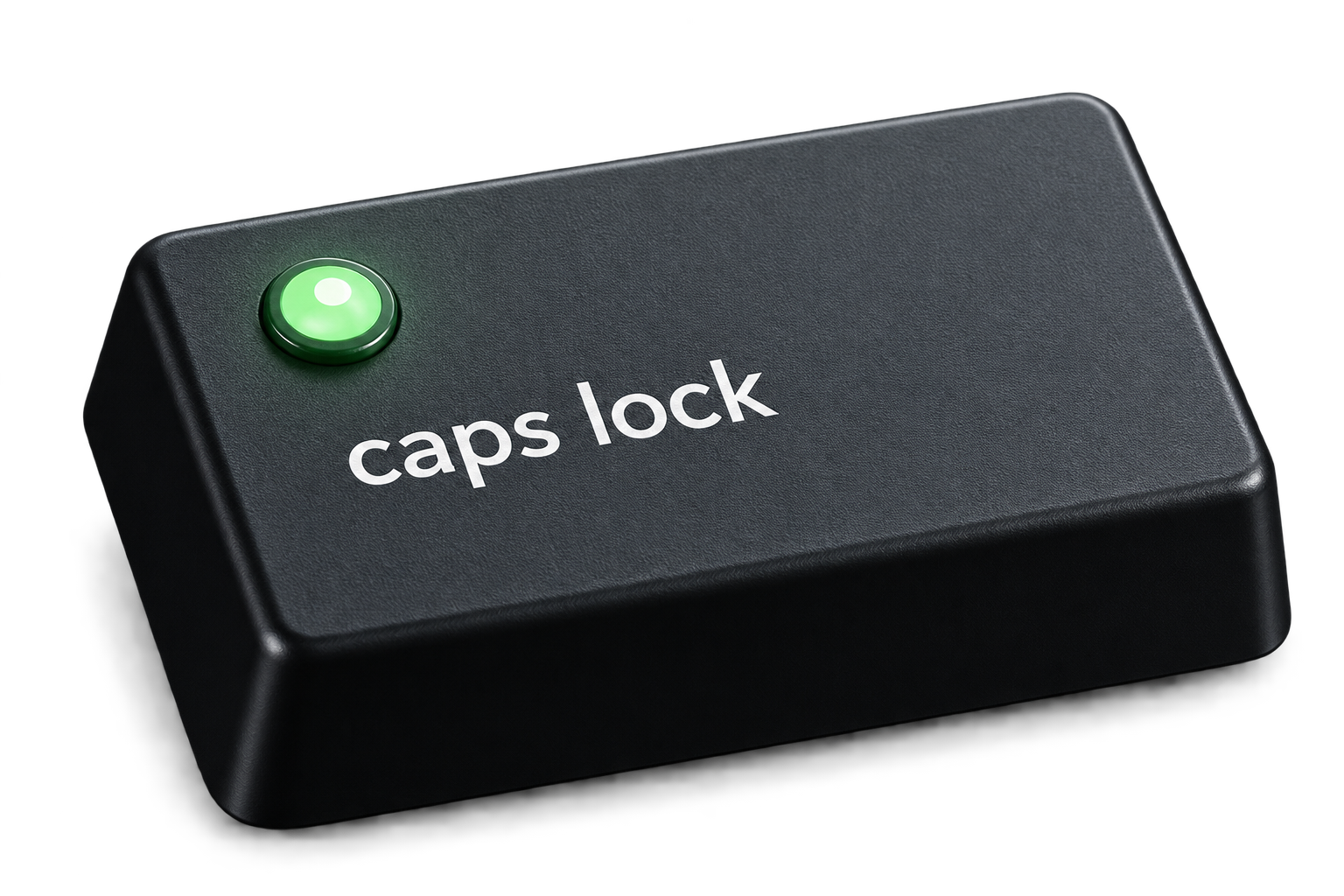
蓋を閉じる前にCapsLockを押します。画面上部の丸い「て」をクリックして、「出勤中」と表示されたら準備完了です。Before closing the lid, press Caps Lock. Click the round “て” at the top of your screen. When the menu says “出勤中,” you’re ready to close the lid.
Appleシリコン(Mシリーズ)・macOS 26向け/初めてインストールする方向けFor Apple silicon (M-series) Macs running macOS 26 · For first installations
購入前に内容を確認するReview before purchase →メニューは説明用の表示例です。The menu is shown for illustration.
夜の使い方At night
寝る前にAIへ頼んで、朝に見直す。Ask your AI before bed, then review in the morning.
AIの作業は、お使いのAIツールで。
てつやはMacのスリープを防ぎます。Your AI tools do the work.
Tetsuya prevents your Mac from sleeping.
SNS投稿Social posts
商品やお店の情報を渡して、投稿文と写真の案を出してもらう。Share your product or shop information, then ask for post copy and photo ideas.
商談準備Meeting preparation
相手の会社を調べて、聞きたいことをまとめてもらう。Research the company and gather the questions you want to ask.
調べものResearch
料金や機能など、選ぶときに知りたいことを比べてもらう。Compare pricing, features, and the things you need to know before choosing.
コード作成Code work
直したいところを伝えて、変更した内容とテスト結果を確認する。Describe what needs changing, then review the changes and test results.
[ ]を自分の情報に置き換えて、AIツールに貼り付けてください。公開・送信などはせず、朝に確認できる下書きとして頼む例です。Replace the bracketed fields with your details, then paste into your AI tool. These examples ask for drafts to review in the morning, without publishing or sending anything.
[ ]を自分の情報に置き換えて、AIツールに貼り付けてください。Replace the bracketed fields with your details, then paste into your AI tool.
[ ]を自分の情報に置き換えて、AIツールに貼り付けてください。Replace the bracketed fields with your details, then paste into your AI tool.
[ ]を自分の情報に置き換えて、AIツールに貼り付けてください。Replace the bracketed fields with your details, then paste into your AI tool.
Mac上で処理を続ける使い方の例です。実行できる内容や作業の継続・完了は、AIツールの設定や利用上限、通信などの条件によって異なります。These examples involve work continuing on your Mac. Available tasks, continued operation, and completion depend on your AI tools, settings, usage limits, and connection.
昼の使い方During the day
ファイルの転送などを始めたら、蓋を閉じる前にCapsLockで出勤します。作業を終えるときは、蓋を開けてもう一度CapsLockを押します。Start your task, such as a file transfer, then press Caps Lock to clock in before closing the lid. When you finish, open the lid and press Caps Lock again to clock out.
蓋を閉じる前にBefore first useメニューバーの丸い「て」を開き、「出勤中」と表示されていることを確認してください。Check the menu bar to confirm that TETSUYA is clocked in. When first using it, check whether work continues on your own Mac with the lid closed.
初めて使うときはCheck your work’s progressまずは短い作業で試してみてください。蓋を開けたら、作業に使ったアプリで、閉じている間も作業が進んでいたかを確かめてください。Open your Mac and check how far your work has progressed.

熱がこもらない場所で使い、本体が熱くなったらいったん退勤して休ませてください。バッグに入れる前にも退勤し、スリープ防止が解除されたことを確認してください。Use it where heat can escape. If your Mac gets hot, clock out and let it cool. Before putting it in a bag, clock out and confirm sleep prevention has ended.
てつやはMacのスリープを防ぐツールです。作業の継続・完了は、アプリや通信などの条件にも左右されます。
Tetsuya prevents your Mac from sleeping. Continued operation and completion also depend on your apps, connection, and other conditions.
てつや 0.3.2TETSUYA 0.3.2
熊本への支援FOR KUMAMOTO

てつやを使っていただくことが、熊本の支援にもつながってほしい。その思いから、1本のご購入につき2,323円を、熊本県「令和8年熊本地震義援金」に寄付する計画です。We want using TETSUYA to also support Kumamoto. For each copy purchased, we plan to donate ¥2,323 to Kumamoto Prefecture’s 2026 Kumamoto Earthquake Relief Fund.
決済手数料は当社が負担します。送金後は、寄付額と送金記録をこのサイトで毎月ご報告します。We cover payment processing fees. After transfers, we will report donation amounts and transfer records on this site each month.
熊本にちなんで、くまモンの誕生日「3月12日」の312と、九州新幹線が全線開業した年の2011を足し、2,323円にしました。As a tribute to Kumamoto, we added 312 for Kumamon’s March 12 birthday to 2011, the year the Kyushu Shinkansen fully opened, to set the price at ¥2,323.
312 + 2011 = 2,323円312 + 2011 = ¥2,323
出典:Sources: くまモン公式プロフィール九州新幹線の整備・開業実績
Appleシリコン(Mシリーズ)搭載のMac・macOS 26向けです。初めてインストールする方向けのパッケージです。For Apple silicon (M-series) Macs running macOS 26. This package is intended for first installations. 蓋を閉じたときの使用例は、作者のMacBookでのものです。The closed-lid use example is from the author’s MacBook. 蓋を閉じたときの使用例と確認範囲を見るRead about the author’s closed-lid setup and testing scope
画面左上の →「このMacについて」を開き、「チップ」に Apple M1・M2 など、「macOS」に 26 と表示されることを確認します。「プロセッサ」に Intel とあるMacは対象外です。Open at the top left of your screen → About This Mac. Confirm that “Chip” shows Apple M1, M2, or another M-series chip, and that macOS is 26. Macs showing an Intel processor are not supported.
購入したご本人は、ご自身の仕事・業務でも利用できます。アプリ、インストーラー、受取リンクの他人との共有や再配布はできません。The purchaser may use it for their own work. Do not share or redistribute the app, installer, or delivery link.
このパッケージは新規インストール用です。すでにてつやをお使いの方は、購入前に「This package is for fresh installations. If you already use TETSUYA, please read the 更新の案内update guidance」をご確認ください。 before purchasing.
返金についてAbout refunds
お客様都合による購入後のキャンセル・返金は受け付けません。ただし、重複決済、商品が提供されない場合、説明・契約内容に適合しない不具合等については、状況を確認し、法令および販売条件に従い、修正・提供または返金等に対応します。寄付の実施を理由に、法令上必要な対応を拒むことはありません。We cannot accept cancellations or refunds for customer convenience after purchase. For duplicate payments, non-delivery, or defects that do not conform to the description or contract, we will review the situation and respond with repair, delivery, refund, or other measures as required by law and these terms. Donations do not limit any response required by law.
ご購入前に、以下の内容をご確認ください。Before checkout, review the 特定商取引法に基づく表記commerce disclosure・, 利用規約terms・, and プライバシーポリシーprivacy policy.
操作の流れを図で紹介します。図は説明用のイメージです。The diagrams introduce the setup flow. They are illustrative only.
決済確認後、通常は数分で、ご購入時のメールアドレスに受取案内が届きます。見当たらないときは迷惑メールもご確認ください。After payment confirmation, delivery instructions normally arrive at the email address used for purchase within minutes. Check your spam folder if you cannot find them.
Macで受取リンクを開き、tetsuya-0.3.2-fresh.pkg をダウンロードします。Finderの「ダウンロード」から開き、macOSの案内に沿ってインストールします。このパッケージは初めてインストールする方向けです。Open the delivery link on your Mac and download tetsuya-0.3.2-fresh.pkg. Open it from Finder → Downloads and follow the macOS installer. This package is for first installations.
許可後は一度ログアウトしてログインし直すか、Macを再起動してください。Then log out and back in, or restart your Mac.
許可するまでは、CapsLockで出勤・退勤できません。Caps Lock won’t clock you in or out until you grant this permission.
Finderの「アプリケーション」から「てつやメニュー」を開きます。次に、 → システム設定 → プライバシーとセキュリティ → アクセシビリティで、「+」を押します。ファイル選択画面で Command + Shift + G を押し、/usr/local/bin と入力して移動します。一覧から tetsuya を選び「開く」を押して、スイッチをオンにします。許可後は一度ログアウトしてログインし直すか、Macを再起動してください。Open “てつやメニュー” in Finder’s Applications folder. Then go to → System Settings → Privacy & Security → Accessibility and click “+.” In the file picker, press Command + Shift + G, enter /usr/local/bin, and go to that folder. Select tetsuya, click Open, and turn its switch on. Then log out and back in, or restart your Mac.
画面上部のメニューバーにある丸い「て」をクリックします。CapsLockを押して「出勤中」を確認し、終えるときはもう一度CapsLockを押すか「退勤する」を選び、「出勤なし」を確認してください。ランプだけでなく、メニューの表示も確認してください。Click the round “て” in the menu bar at the top of your screen. Press Caps Lock and confirm “出勤中.” To finish, press Caps Lock again or choose “退勤する,” then confirm “出勤なし.” Check the menu display as well as the keyboard light.
既存の無料先行版についてABOUT THE EXISTING FREE EARLY RELEASE
ここから下は、無料先行版0.3.1についての案内です。有料版0.3.2への更新を約束するものではありません。The information below is for the 0.3.1 free early release. It does not promise an upgrade to the paid 0.3.2 version.
Appleシリコン搭載Mac用(M1・M2など)For Apple silicon Macs (such as M1 and M2)
初めててつやを入れる方へ。導入・出退勤は作者のMac 1台・macOS 26で確認しています。他の環境は未確認です。For your first TETSUYA installation. Installation and clock-in/out were checked on the author’s Mac running macOS 26. Other setups are untested.
Mac用・無料でダウンロードFree download for Mac0.3.1 · 6.8 MB · tetsuya-0.3.1-fresh.pkg
Intel Mac・iPhone・iPad・Windowsにはインストールできません。Cannot be installed on Intel Macs, iPhone, iPad or Windows.
Mac画面の左上の →「このMacについて」を開きます。Open at the top left of your Mac’s screen → About This Mac.
「チップ」にApple M1・M2などが表示されるMacが対象です。「プロセッサ」にIntelとあるMacは対象外です。macOSのバージョンも、この画面で確認できます。Look for an Apple chip, such as M1 or M2. Macs showing an Intel processor are not supported. You can also check your macOS version here.
Apple公式の確認方法Apple’s identification guide ↗すでにてつやを使っている方:このファイルでの上書きはできません。Already using TETSUYA? This file cannot update your installation. 更新の案内へUpdate information →
CapsLockを押して出勤、もう一度押しててつやの出勤をすべて終了。メニューバーの丸い「て」から、出勤状態と残り時間を確認できるようになりました。
Press Caps Lock to clock in and press again to end all TETSUYA attendance. The round “て” in the menu bar now shows attendance and remaining session time.
ランプが消えていても、メニューで状態を確認し、「退勤する」ボタンから終了できます。この版は新規インストール専用で、旧版への上書き更新には使えません。
Even when the lamp is off, you can check the menu and use “退勤する” to clock out. This release is for fresh installations and cannot update an existing version.
ファイルをダブルクリックし、インストーラーの案内に沿って進めます。インストールが終わるまでログアウトしないでください。Double-click the file and follow the installer. Stay logged in until installation finishes.
パスワードを求められたら、Macの管理者のパスワードを、macOSの確認画面に入力します。If prompted, enter your Mac administrator password in the macOS confirmation dialog.
「てつやメニュー」をダブルクリック。画面上部のメニューバーに、丸い「て」が表示されます。Double-click “てつやメニュー.” Look for the round “て” in the menu bar at the top of your screen.
→ システム設定 → プライバシーとセキュリティ → アクセシビリティを開き、「tetsuya」の許可を確認します。CapsLockで操作するための設定です。Open → System Settings → Privacy & Security → Accessibility and check permission for “tetsuya.” This enables Caps Lock control.
項目が見つからない、許可しても動かない場合は、下の問い合わせ先へ。ファイルを削除したり、インストールし直したりする必要はありません。If the entry is missing or it still does not work, contact us below before deleting files or trying to reinstall.
丸い「て」をクリックして、「出勤中」なら開始できています。終えるときはCapsLockをもう一度押し、「出勤なし」を確認します。Click the round “て.” “出勤中” means you have clocked in. To finish, press Caps Lock again and confirm “出勤なし.”
出勤状態は、キーボードのランプだけで判断せず、メニューで確認してください。Check the menu to confirm your status, even if the keyboard light is on.
途中で困ったら、ここから聞いてください。Need help getting started? [email protected]
この0.3.1には、アプリ内の更新通知はありません。更新の案内は、このサイトのアップデートページに掲載します。
Version 0.3.1 does not include in-app update notices. Update information will be posted on this site's update page.
メニューで新版を知らせる機能と、削除せずに設定・記録を引き継ぐ更新用インストーラーを準備しています。新規用ファイルでの上書きや、手動でのファイル削除はしないでください。
In-app notices and an update installer that preserves settings and records are being prepared. Do not overwrite an existing installation with the fresh package or manually delete its files.
アップデートの案内を見るSee update informationすでにてつやが入っている場合、この版では上書きできません。入れ直すためにファイルを手動で消さず、 [email protected] へ。This version cannot overwrite an existing installation. Do not manually delete files to reinstall. For help, email [email protected].
出勤中は、動いているアプリが電池を使い、熱も出します。
本体の周囲に空間を確保し、十分に放熱できる状態で使ってください。
While clocked in, running apps use battery power and generate heat.
Leave space around your Mac and use it where heat can dissipate properly.
夜通し使うときは、電源ケーブルにつないでください。
Connect your Mac to power for overnight work.
電池・発熱について詳しく見るRead more about battery use and heat更新の案内は、このサイトのアップデートページに掲載します。
Update information will be posted on this site’s update page.
すでにてつやを利用している方は、新規用パッケージで上書きせず、案内を確認してください。
If TETSUYA is already installed, do not overwrite it with a fresh-installation package. Check the update guidance instead.
アップデートの案内を見るSee update information →使い方・サポートHelp & support
知りたい項目を開いて確認できます。Open the topic you need.
解決しないときは、[email protected] へ。起きていることを教えてください。Still need help? Email [email protected] and tell us what is happening.
てつやを使う間も、Macの電池・発熱・動いているアプリの状態を確認してください。
While using TETSUYA, check your Mac’s battery, heat, and the apps that are running.
出勤中は、Macが眠らないため電池の減りや発熱が増えることがあります。長く使うときは電源につなぎ、作業を終えたら「出勤なし」を確認してください。
While clocked in, your Mac does not sleep, so battery use and heat can increase. For long sessions, connect power and confirm “出勤なし” when you finish.
Macをカバンや布団の中など、風の通らない所に入れないでください。周囲に空間を確保して使ってください。
Do not put your Mac in a bag, under bedding, or anywhere without airflow. Leave space around it while using it.
macOSの入力保護中は、CapsLockランプだけを一時的に消して、出勤を続けることがあります。正しい状態はメニューバーの丸い「て」で確認します。
During macOS protected input, TETSUYA may temporarily turn off only the Caps Lock light while attendance continues. Check the authoritative status from the round “て” in the menu bar.
ランプが消えていても「出勤中」と表示されるときは、メニューの「退勤する」から退勤できます。確認画面に従って進めます。最後に「出勤なし」になったことを確かめてください。
If the lamp is off but the menu still reads “出勤中,” select “退勤する” to clock out and follow the confirmation. Then check that the status reads “出勤なし.”
| とき | When | 何が起きるか | What happens |
|---|---|---|---|
| 12時間 | 12 hours | CapsLockからの出勤は、開始から12時間で自動退勤の処理に入ります。処理が終わったことを「出勤なし」の表示で確認してください。 | Caps Lock attendance starts clock-out processing 12 hours after clock-in. Confirm completion by checking for “出勤なし.” |
| 電池 20% | Battery 20% | 電池で動いている時(電源につないでいても電池が減っている時を含む)に残り20%以下になると、Macを守るためにすべての出勤を終了します。 | When running on battery (including when plugged in but the battery is still falling) and at 20% or below, all attendance sessions end to protect the Mac. |
| 連続24時間 | 24 hours in a row | 蓋を閉じたままのスリープ防止が連続24時間に達すると、CapsLockの出勤を終了し、その保護を30分休止する仕様です。 | The design ends Caps Lock attendance after 24 hours of continuous closed-lid protection and pauses that protection for 30 minutes. |
どれも「Macを守るため」の動きです。夜通し働かせるときは電源ケーブルをつないでください。
All of these are there to protect your Mac. For overnight work, plug in the power cable.
Macを開いたまま、メニューバーの丸い「て」を押して「出勤なし」になったことを確認します。
Keep the Mac open, select the round “て” in the menu bar, and confirm that it reads “出勤なし.”
「退勤処理を確認中」などが出るときは、その表示だけで退勤完了と判断せず、メニューの表示が切り替わるのを待ち、もう一度確認してください。
If a status such as “退勤処理を確認中” appears, do not treat it as clock-out complete. Wait for the menu status to change and check again.
解決しないときは [email protected] に、表示されている状態を添えてご連絡ください。
If it does not resolve, contact [email protected], and include the status shown in the menu.
「てつやメニュー」をゴミ箱へ移すだけでは、バックグラウンドで動く本体は削除されません。まず退勤し、「出勤なし」を確認してください。
Moving “てつやメニュー” to the Trash does not remove the background service. First clock out and confirm “出勤なし.”
削除・再インストールは、[email protected] へご相談ください。記録を残す設計のため、ファイルを手動で削除せず、状況を確認してご案内します。
For removal or reinstallation, contact [email protected]. Because records are designed to remain, do not manually delete files; we will review your situation and guide you.
作者のM2搭載Mac・macOS 26で、導入と出退勤を確認しています。作者のMacBookでは、てつや0.3.2で出勤して蓋を閉じ、再び開くとAIの作業が進んでいました。このときのMac本体のスリープ履歴は、まだ照合できていません。お使いの機種や電源条件については、購入前にお問い合わせください。
Installation and clock-in/out were checked on the author’s M2 Mac running macOS 26. The author clocked in with TETSUYA 0.3.2 and closed the MacBook lid. When they opened it again, the AI task had made progress. We have not yet checked that observation against the Mac’s sleep history. Contact us before purchase if you have questions about your model or power setup.
以下は無料先行版0.3.1についての確認範囲です。0.3.1の導入と出退勤を確かめたのは、作者のMac 1台(Apple シリコン・USキーボード+日本語入力・macOS 26)です。次の点は、まだ確かめていないか、承知のうえで残している制限です。気になる点があれば、入れる前にお問い合わせください。
The following testing scope is for the 0.3.1 free early release. Installation and clock-in/out of that build were checked on one Mac, the author's (Apple silicon, US keyboard, Japanese input, macOS 26). The points below are either untested or known limitations. If any of them concerns you, ask before installing.
買い切り2,323円。購入前に、対応環境と販売条件をご確認ください。One-time purchase, ¥2,323. Review compatibility and the sales terms before checkout.
価格と購入条件を見るSee pricing and purchase terms